1. Choose your connection
On iPad, open HomeDeck Settings → Plugins and enable the appropriate plugin. Livoltek uses its cloud API. Solar Inverters (BETA) offers Deye Cloud and Local Network.
The current local mode contains a Deye Hybrid profile. SOLARMAN or Modbus support alone does not establish compatibility with Sofar, Solis, Afore or another brand: a compatible register map is required. Do not use the Deye Hybrid profile for an unverified model. Cloud mode requires Deye Cloud access, not merely a SOLARMAN account.
2. Connect Livoltek
Open the Livoltek Energy plugin. Prepare your account’s API credentials: Security ID, User Token and API Key. An ordinary username and password do not replace these fields. If you do not have them, ask Livoltek or your installer about API access.
Select the server hosting your station: EU&MEA Server or Global Server. Enter the three values and select Connect Livoltek. If a station list appears, choose yours. Verify the site name and server after connecting.
3. Or configure Deye Cloud
In Solar Inverters, select Deye Cloud. The Create App ID and App Secret link inside the plugin opens Deye’s developer portal. You need API access to your station; your app password alone is not enough.
- Choose your account’s Deye Cloud region: Europe or Americas.
- Enter App ID, App Secret, Deye Cloud email and password, and Station ID.
- Select W or kW under API power units according to your API data. A wrong choice changes the scale by 1,000: compare power with the Deye app.
- Select Save and test connection. Check the site, readings and update time. Deye Cloud data is requested no more often than once every five minutes; inverter control is not supported.
4. Or connect over your local network
Use this route only with a compatible Deye Hybrid and a logger or Modbus interface reachable on your home network. The iPad must be able to reach it; grant HomeDeck local network permission. Confirm the settings with your installer or equipment documentation.
- Choose Local Network, then SOLARMAN Logger or Modbus TCP.
- Enter the local IP address or .local hostname and port. Defaults are 8899 for SOLARMAN Logger and 502 for Modbus TCP; the device’s actual settings take precedence.
- For SOLARMAN, enter the logger’s serial number, not the inverter’s. Enter the device’s Modbus Slave ID.
- Select Save and test connection. Do not expose logger or Modbus ports to the internet to connect HomeDeck.
5. Read energy flows and history
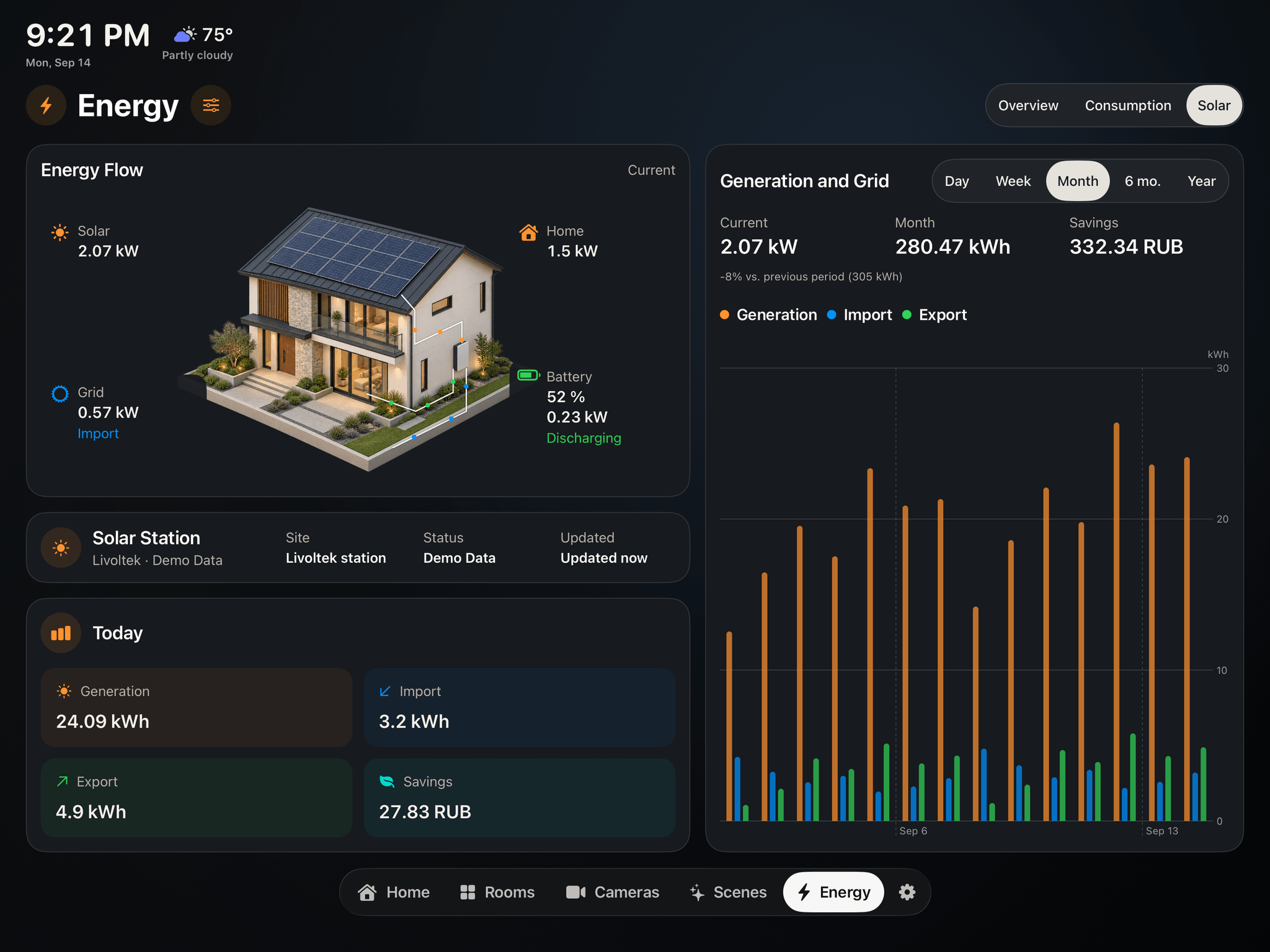
Open Energy → Solar. Energy Flow shows current generation, home load, grid direction and battery charging or discharging when those readings are supplied by the source.
In Generation and Grid, choose Day, Week, Month, 6 mo. or Year. Today shows accumulated daily kWh, not current power. For example, 0.88 kW now and 15.4 kWh today measure different things and are not contradictory.
Check the station card’s status and update time. With multiple sources, choose Solar System in Energy settings. Available metrics and history depend on the API, model and saved data.
6. Understand your station’s contribution and costs
Enter your price per kWh and currency in the settings beside Energy. Compare generation, imports and exports over the same periods to see when the home draws from the grid or sends surplus back.
Grid energy cost uses imports and your tariff. Savings are an estimate, not an export payment or a complete utility bill. Feed-in rates, fixed charges and other tariffs may differ.
Inverter home load does not replace individual appliance readings. To find your biggest consumers, use compatible energy-metering devices and the Consumption section.
7. If readings do not appear
Check that the plugin is enabled, the correct site is selected and its settings show no errors. For cloud access, check region and API permissions; for local access, check address, port, logger serial and Slave ID. First confirm the manufacturer’s app has readings. A dash or an unavailable metric does not mean zero generation.
Energy → settings → Data Sources opens the connected station’s settings. Livoltek has a Refresh button there. Repeated taps cannot make the cloud server provide newer readings.
Configure the connection on iPad and use Apple TV for viewing. HomeDeck cloud synchronization requires access to the owner’s personal iCloud on both devices. For help, contact support@homedeck.co with the model, connection method and error text. Keep passwords, API Key, App Secret and tokens out of screenshots.
The illustration shows demo data in English. Use a real connection, not demo mode, for your own station.