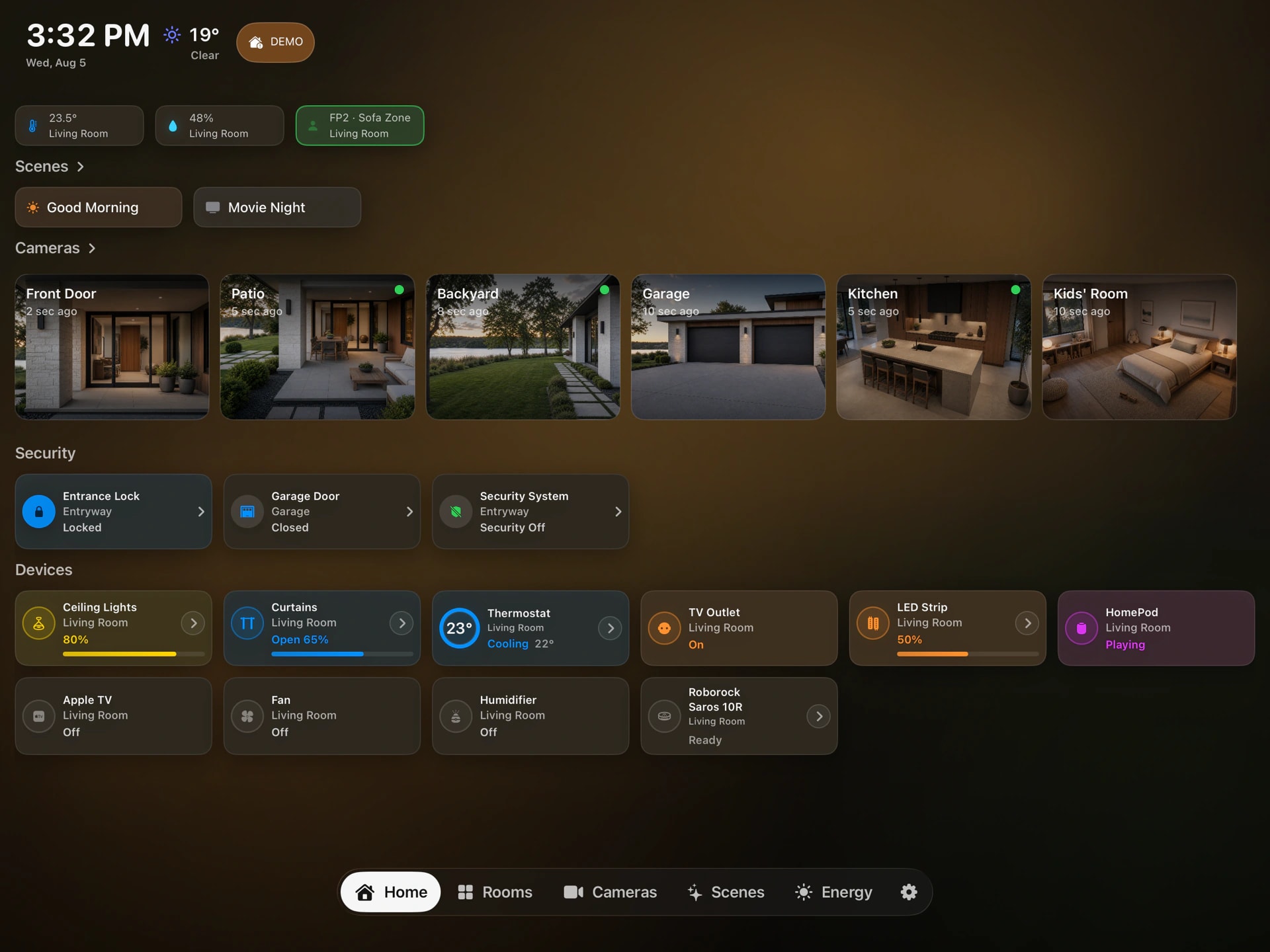
1. HomeDeck is a dashboard, not a home hub
HomeDeck works on top of an existing Apple Home. It does not create a separate copy of your home, pair accessories itself, or turn an iPad into a home hub. Your rooms, names, access and automations continue to be managed through Apple Home.
HomeDeck adds no separate hub requirement. HomePod or Apple TV is still needed whenever Apple Home requires a home hub, including remote access, automations, sharing, notifications and adding Matter accessories.
2. What you need before opening the app
For iPad, install HomeDeck on a device running iPadOS 18 or later. The iPad must use an Apple Account that can access the intended Apple Home. The Apple TV version requires tvOS 26 or later and access to the same household data.
Set up rooms, accessories and scenes in Apple Home first. Clear names make the shared dashboard easier to understand, especially when more than one person uses it.
- An existing Apple Home
- A compatible iPad or Apple TV
- An Apple Account with access to that home
- The Apple permissions needed for the features you choose
3. First launch and permissions
When HomeDeck needs Apple Home data, iPadOS asks you to allow Home access. HomeDeck then receives only the homes and accessories available to the current Apple Home user. There is no separate HomeDeck account or product sign-in.
Calendar, location, Music and notification access support optional features such as the family schedule, local weather, playback and alerts. You can leave an optional permission off, review it later in system Settings, or withdraw it at any time.
4. Where rooms, scenes and device status come from
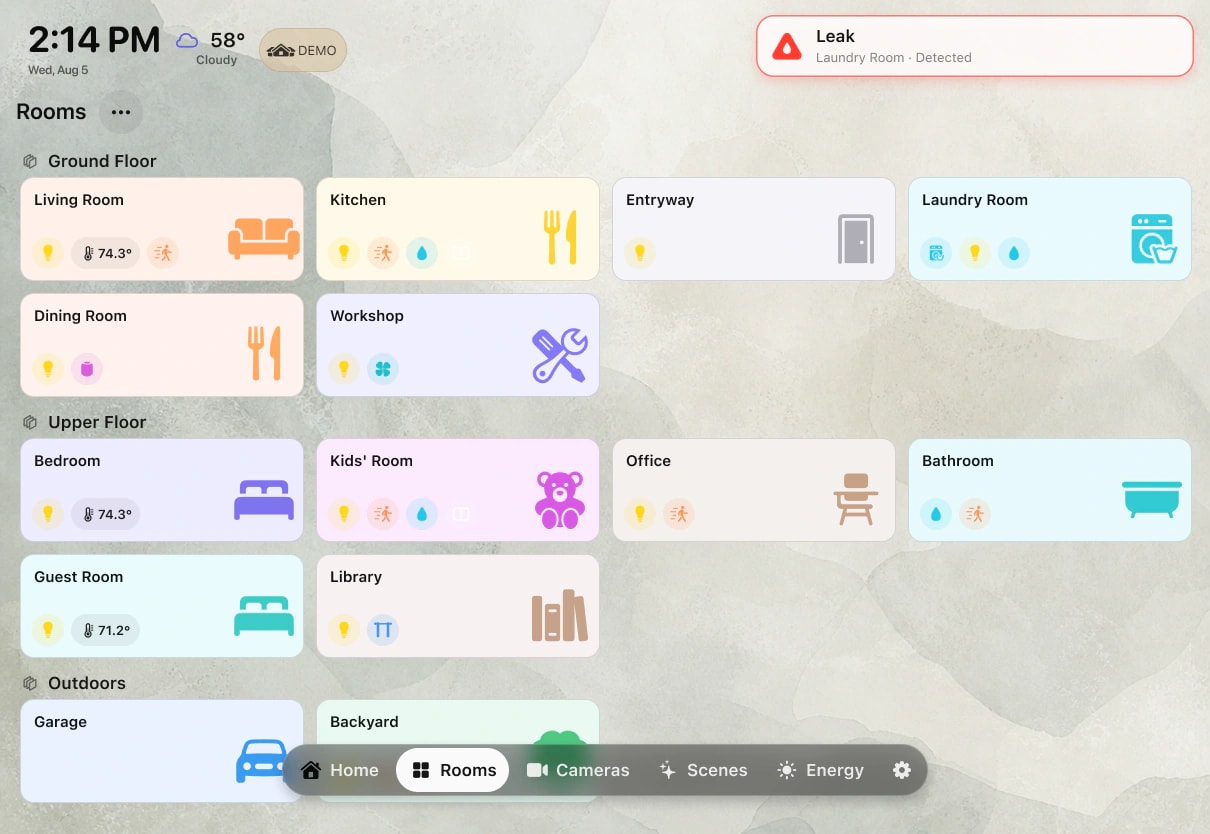
HomeDeck reads supported homes, rooms, scenes, accessories, services and sensor values through Apple frameworks. A control you use in HomeDeck is sent through HomeKit to the same accessory that appears in Apple Home.
Availability depends on what Apple exposes to third-party apps and on the permissions of the current household member. HomePod, Apple TV and some built-in HomePod readings do not appear as ordinary accessories because Apple does not expose them through the public HomeKit API.
5. How compatible cameras are handled
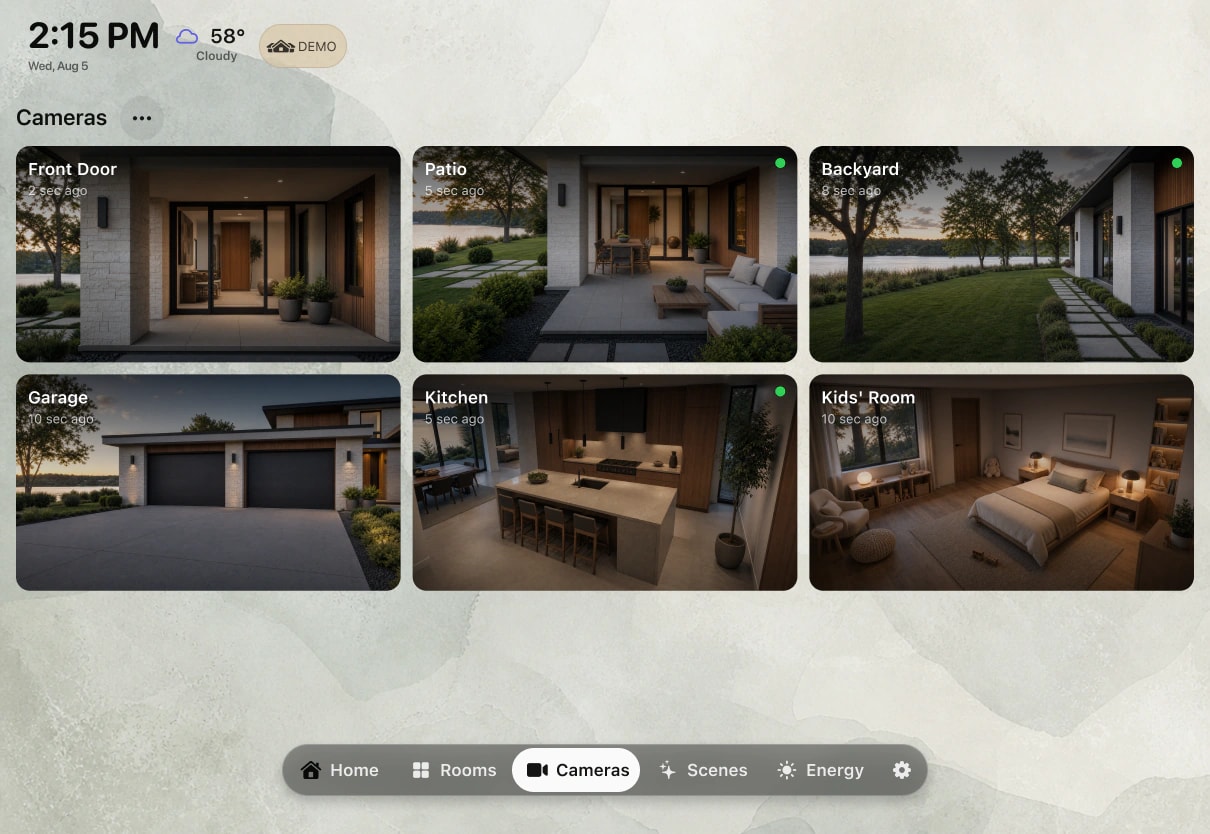
Compatible HomeKit camera snapshots and live streams can appear alongside rooms and controls. Camera availability follows Apple Home access and Apple platform behaviour; a camera that is unavailable to the current household member cannot be added independently inside HomeDeck.
HomeDeck displays camera video on the device through Apple frameworks. It does not record camera feeds or send them to servers operated by the developer.
6. What you can customise and sync
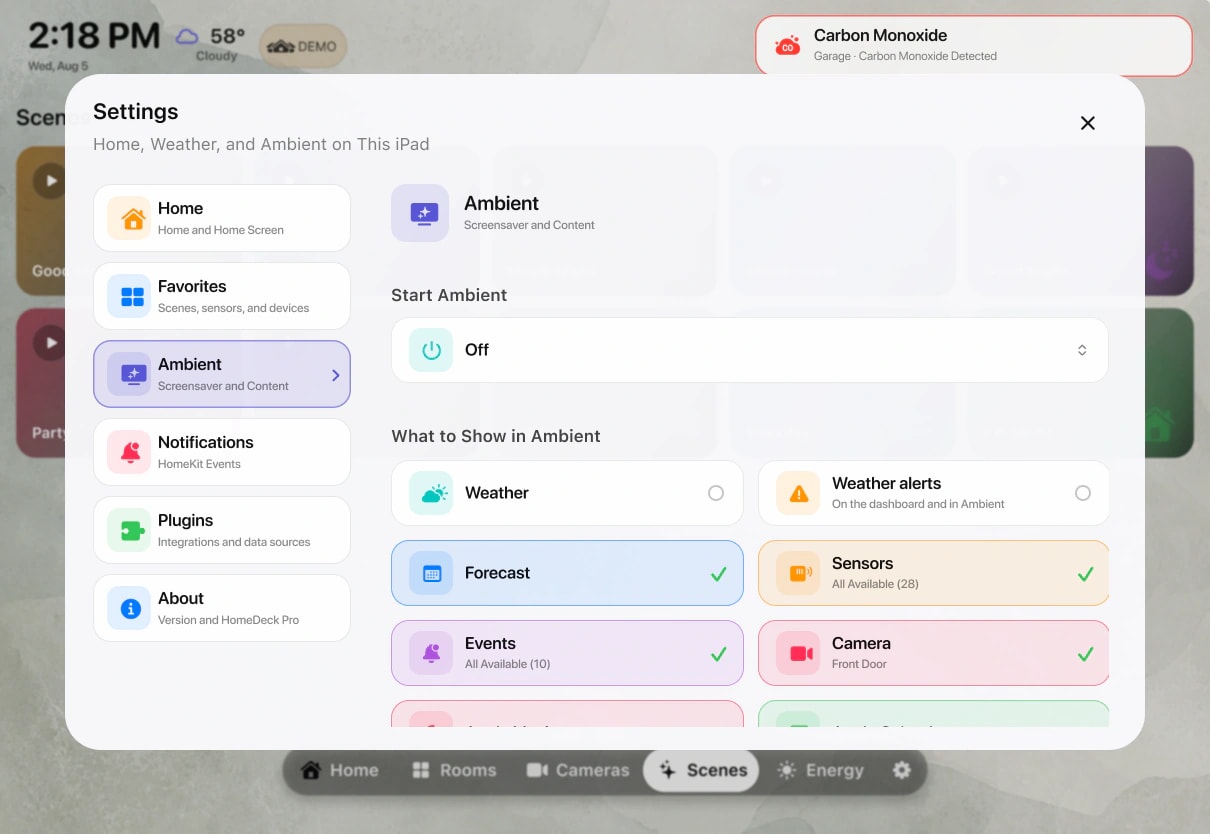
On iPad, arrange rooms, favourites, devices and cameras, hide items that do not belong on the shared screen, and choose the information shown in Ambient mode. Guest profiles can limit visible rooms, devices, cameras, sensors and scenes behind a PIN-protected owner mode.
Supported preferences and guest-profile settings can sync to Apple TV through your personal iCloud account. HomeDeck does not run a separate account service for this sync, and your Apple Home data is not uploaded to developer-operated servers.
7. Test the everyday setup before mounting an iPad
Place the iPad on a stand in the intended room for several days before installing a permanent wall mount. Compare rooms and controls with Apple Home, run real scenes, open the cameras you rely on, and confirm that status changes reflect the physical accessories.
Also check Wi-Fi, glare, viewing distance, overnight behaviour, heat and the recovery path if the app or device needs restarting. Choose permanent power and a mount only after the routine works and the iPad can still be removed for service.