1. Prepare devices with energy metering
You need compatible outlets or other devices that report power in watts and/or an energy counter in kWh to HomeDeck through Apple Home. Knowing that a device is on is not enough to measure its consumption.
Add the devices to your Apple Home and grant HomeDeck access to that home. Energy becomes available when compatible device readings or a connected solar station are present. The consumer list needs individual device readings: a solar station does not measure each outlet separately.
2. Understand power versus consumption
Open Energy → Consumption. Watts (W) show the load now; kilowatt-hours (kWh) show energy used over time. A small load running all day can use more energy than a powerful appliance running for a few minutes.
Overview may use your solar station’s whole-home power reading. Consumption sums compatible device readings, so the two values need not match.
3. Find the biggest consumers
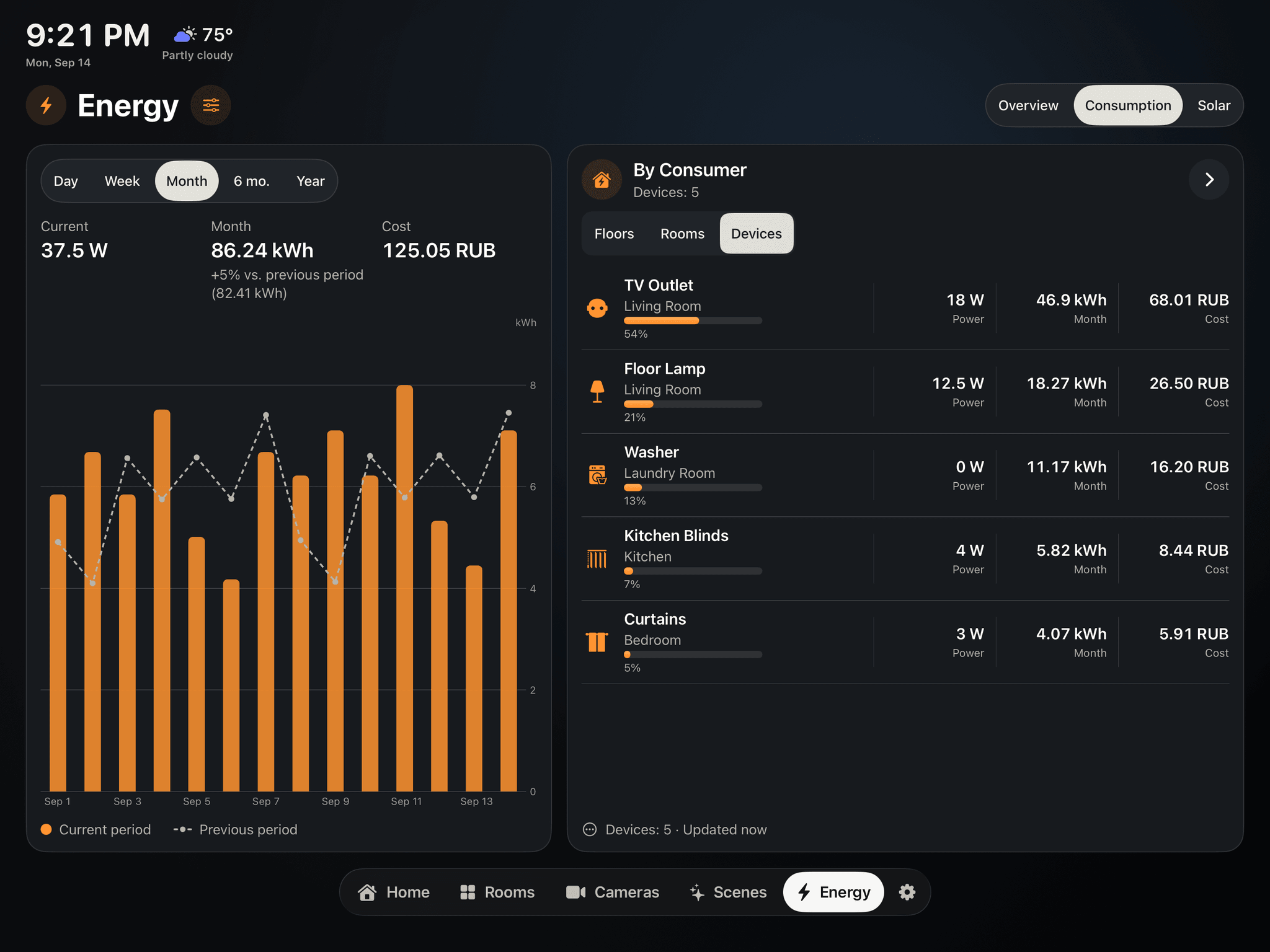
Choose Day, Week, Month, 6 mo. or Year. Under By Consumer, switch between Devices, Rooms and Floors. Compare rows over the same period and look for the largest kWh values.
Start with Top Consumers in Overview, then open Consumption for details. The chart compares the selected period with the previous one when history is available for both.
- Devices: find a specific outlet or appliance.
- Rooms: see where energy use is concentrated.
- Floors: compare areas of the home if rooms are assigned to floors.
4. Set your price per kWh
On iPad, tap the settings icon beside Energy. Under electricity costs, enter your price per kWh, select a currency and tap Done.
A device’s estimated cost is its saved consumption for the period multiplied by your tariff. For example, 10 kWh at 5 per kWh equals 50 in your chosen currency. This uses one configured tariff; it is not a utility bill including fixed charges and other fees.
With a solar station, grid energy cost is based on imports. Do not add all outlet costs to it again: they may be part of the same load.
5. Use the readings to make changes
Open a consumer’s card to inspect its power and available energy readings. On iPad, you can control a compatible outlet from its card. Only switch off appliances when safe; do not disconnect refrigeration, heating or security equipment merely to test consumption.
Change one usage habit and compare similar periods after enough data has accumulated. This is more useful than judging a single power reading. Use Apple TV to view the readings.
If a device or its history is missing
Check that the device is reachable in Apple Home and exposes energy characteristics to HomeDeck. Metering in the manufacturer’s app does not necessarily mean those readings are available through Apple Home.
History is built from saved readings. Connecting a device does not automatically fill in last month. If only power is available, do not treat it as measured kWh for the period. A dash means an unavailable reading, not zero use.
The list covers measured devices, not necessarily the entire home. The screenshot above uses demo data in English; your names, sources and values will differ.